
How to Capture Your First Highlight
Turn an epic moment into a saved clip in seconds. This walkthrough shows you how to start recording, save a clip, and find it in your library.
1. Start the Replay Buffer#
Before you can capture clips, you need to start the replay buffer. This creates a rolling recording in the background.
Steps#
- Open ClipMac
- Click Start Clipping in the top right corner
- In the modal that appears, click Start Clipping again to confirm
- The recording indicator will appear — you're now live!
Important: Keep the recording running while you play. The replay buffer continuously captures your gameplay in the background. When something cool happens, you can save it retroactively.
2. Save a Clip#
When a highlight-worthy moment happens, save it instantly.
Using Hotkeys (Recommended)#
Press your configured hotkey to save a clip without leaving your game:
| Hotkey | Default | What It Does |
|---|---|---|
| Instant Replay | ⌘⌥I | Saves the last few seconds (default: 15s) |
| Capture Clip | ⌘⌥C | Saves a longer clip (default: 30s) |
Using the Menu Bar#
Click the ClipMac icon in your Mac's menu bar and select:
- Instant Replay — for short highlights
- Capture Clip — for longer moments

Success! You'll hear a confirmation sound when your clip is saved. The clip is pulled from your replay buffer, so you'll always capture the moment — even if you press the hotkey a few seconds late.
3. Find Your Clip#
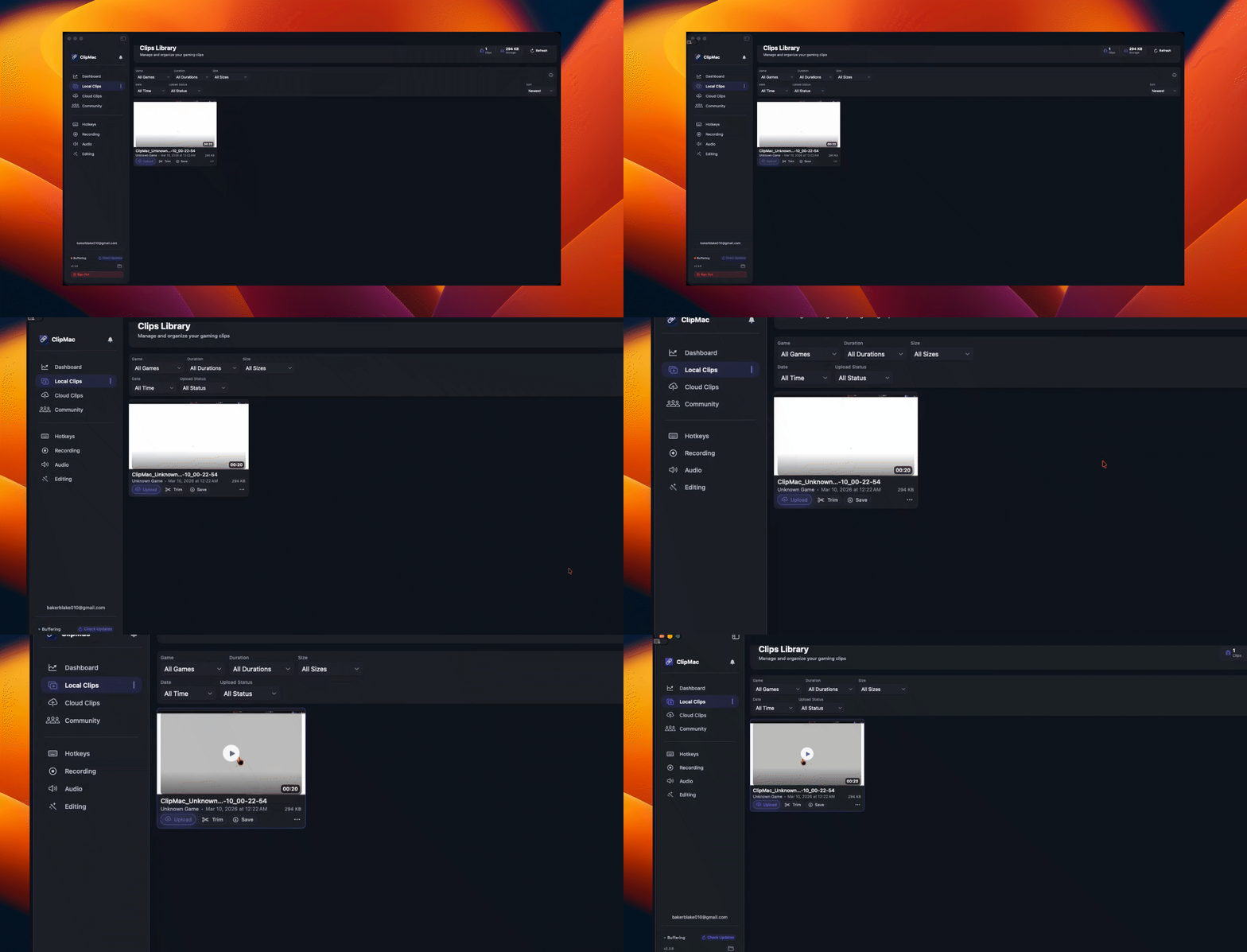
Your saved clips appear in the Clips library.
- On the dashboard sidebar, select Clips
- Your newest clip appears at the top
- Click to preview, or right-click for more options
What You Can Do Next#
| Action | Description |
|---|---|
| Play | Preview your clip in the built-in player |
| Edit | Open the video editor to trim, add text, or apply effects |
| Upload | Send to cloud storage and generate a shareable link |
| Reveal in Finder | Locate the file on your Mac |
| Delete | Remove the clip from your library |
Quick Tips#
- Don't stop recording — Keep the replay buffer active during your gaming session so you're always ready to capture
- Hotkeys are faster — Practice using ⌘⌥C for quick saves without alt-tabbing
- Adjust durations — Change Instant Replay and Capture Clip lengths in the Recording section of the dashboard
- Buffer length matters — Your replay buffer duration (set in Recording settings) determines how far back you can save